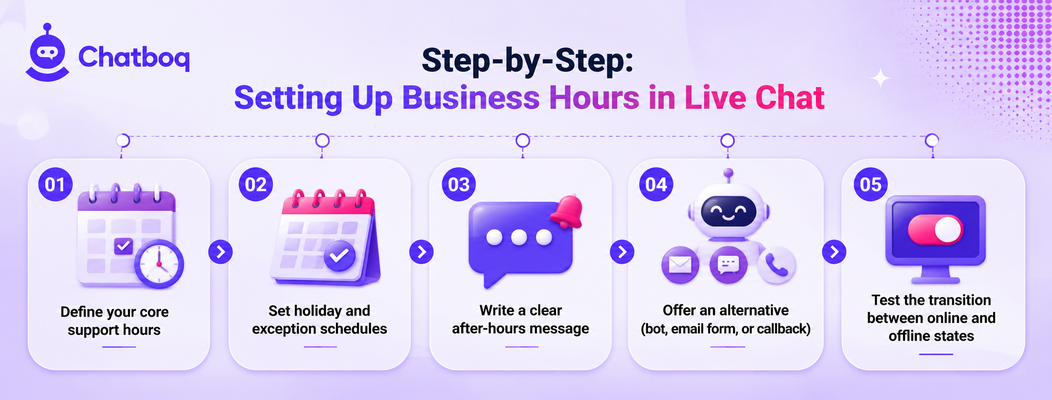
Setting up business hours properly involves defining core support hours, configuring holiday and exception schedules, writing a clear after-hours message, offering some form of alternative path, and explicitly testing the transition between the online and offline states before considering the setup complete.
Step 1: Define your core support hours
Starting from the team's actual staffed hours, rather than an aspirational schedule the team doesn't consistently maintain, ensures the configured hours match the real experience customers will actually get.
Step 2: Set holiday and exception schedules
Configuring known holidays and other planned exceptions in advance prevents the awkward situation of the widget showing as online on a day the team is actually unavailable, which undermines trust in the accuracy of the online status generally.
Step 3: Write a clear after-hours message
The offline message should state plainly that the team is currently unavailable and specify, as precisely as possible, when a response can be expected, rather than a vague, open-ended promise to respond eventually.
Step 4: Offer an alternative (bot, email form, or callback)
Giving a customer something productive to do while the team is offline, whether that's a chatbot handling simple requests, an email capture form, or a scheduled callback option, meaningfully softens the experience of reaching out outside business hours.
Step 5: Test the transition between online and offline states
Actually visiting the site right at the configured cutoff time, or simulating it, confirms the transition behaves as expected rather than assuming the configuration works correctly without ever directly verifying it.

 ChatGPT
 Perplexity
 Claude








Leave a Comment
Your email address will not be published. Required fields are marked *
By submitting, you agree to receive helpful messages from Chatboq about your request. We do not sell data.